Configure Opus · 7 min read
Customize the customer portal
Change customer-facing wording, colors, typography, logo, layout details, and safely scoped CSS.
Basic appearance
Open Portal & settings
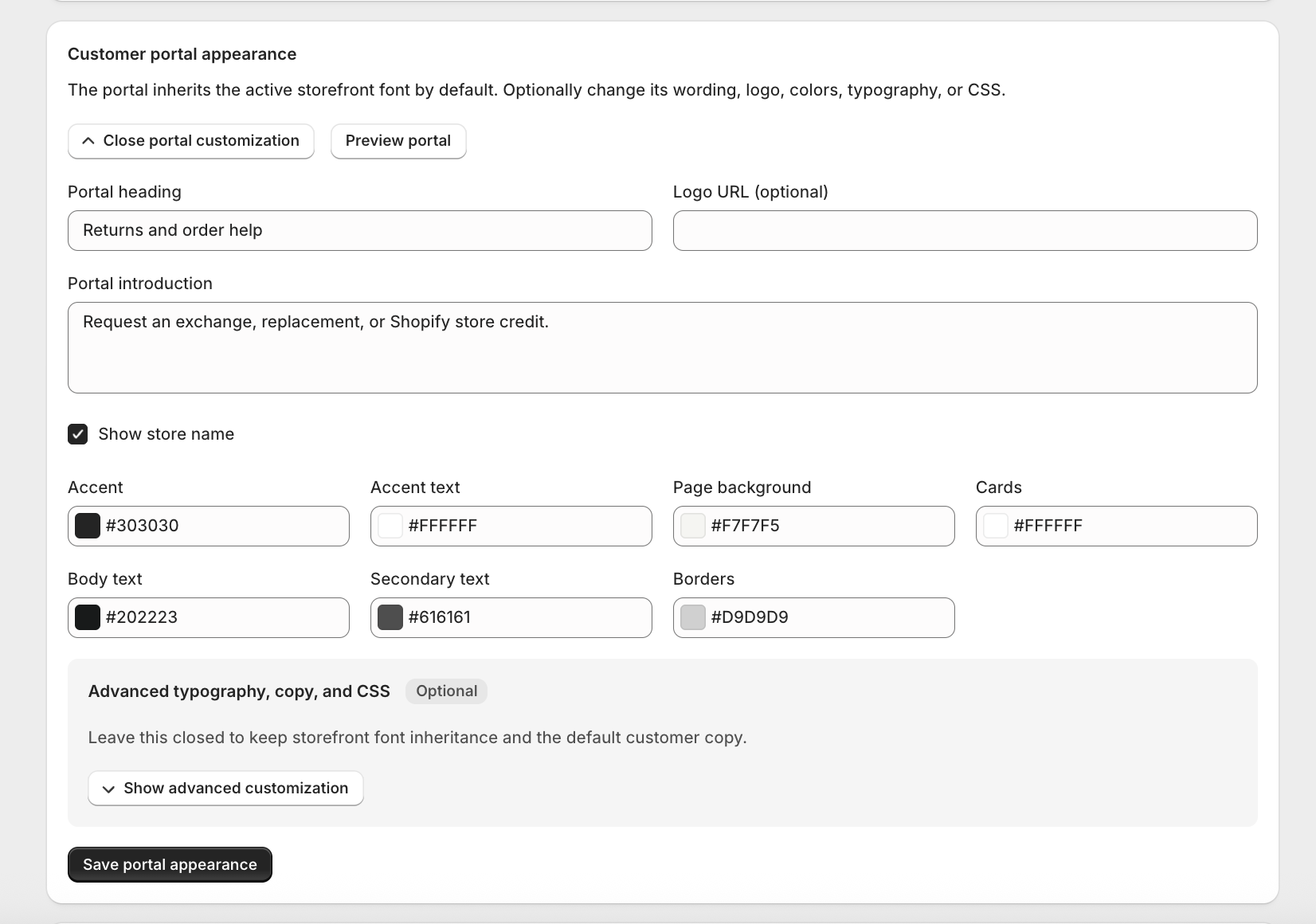
Expand Customer portal appearance and use Preview portal to compare changes with your active storefront.
Set the heading and introduction
Explain the outcomes you actually offer. Keep the heading short and use the introduction for one sentence of context.
Add a logo URL if needed
Use an HTTPS image hosted on a stable public URL. If omitted, Opus can display the store name instead.
Choose accessible colors
Set accent, accent text, page background, cards, body text, secondary text, and borders. Maintain strong contrast for buttons and body copy.
Save and test
Check the first page, all four request steps, validation messages, and the final request status on desktop and mobile.
Advanced typography and CSS
- Font style can inherit the active storefront font or use a system, modern, classic, rounded, or custom stack.
- Custom CSS must use .opus-portal as the root selector so it cannot affect the rest of the storefront.
- Imports, external URLs, scripts, and unsafe rules are blocked.
- Use @media rules for mobile adjustments and test common widths before publishing.
- If custom CSS causes a layout problem, remove it and save; the default responsive layout remains available.
Still stuck?
Send the details support needs
Include your shop domain, Opus request number, Shopify order number, approximate time, and the exact visible error. Never send passwords, access tokens, or card data.
Contact support