Start here · 9 min read
Test the complete customer experience
Use a fulfilled test order to verify eligibility, item quantities, exchange choices, tracking, and customer updates.
Prepare a valid test order
Create an order with a customer email you control
Use Shopify's supported test-payment method in a development store. Add two products or a quantity greater than one if you want to test multi-item exchanges.
Mark the order paid and fulfilled
Eligibility usually starts at fulfillment. If the order remains unfulfilled, the customer may correctly see no eligible items.
Open the storefront as the customer
Sign in to the customer account or use the order number and checkout email in the portal lookup form.
Submit the request
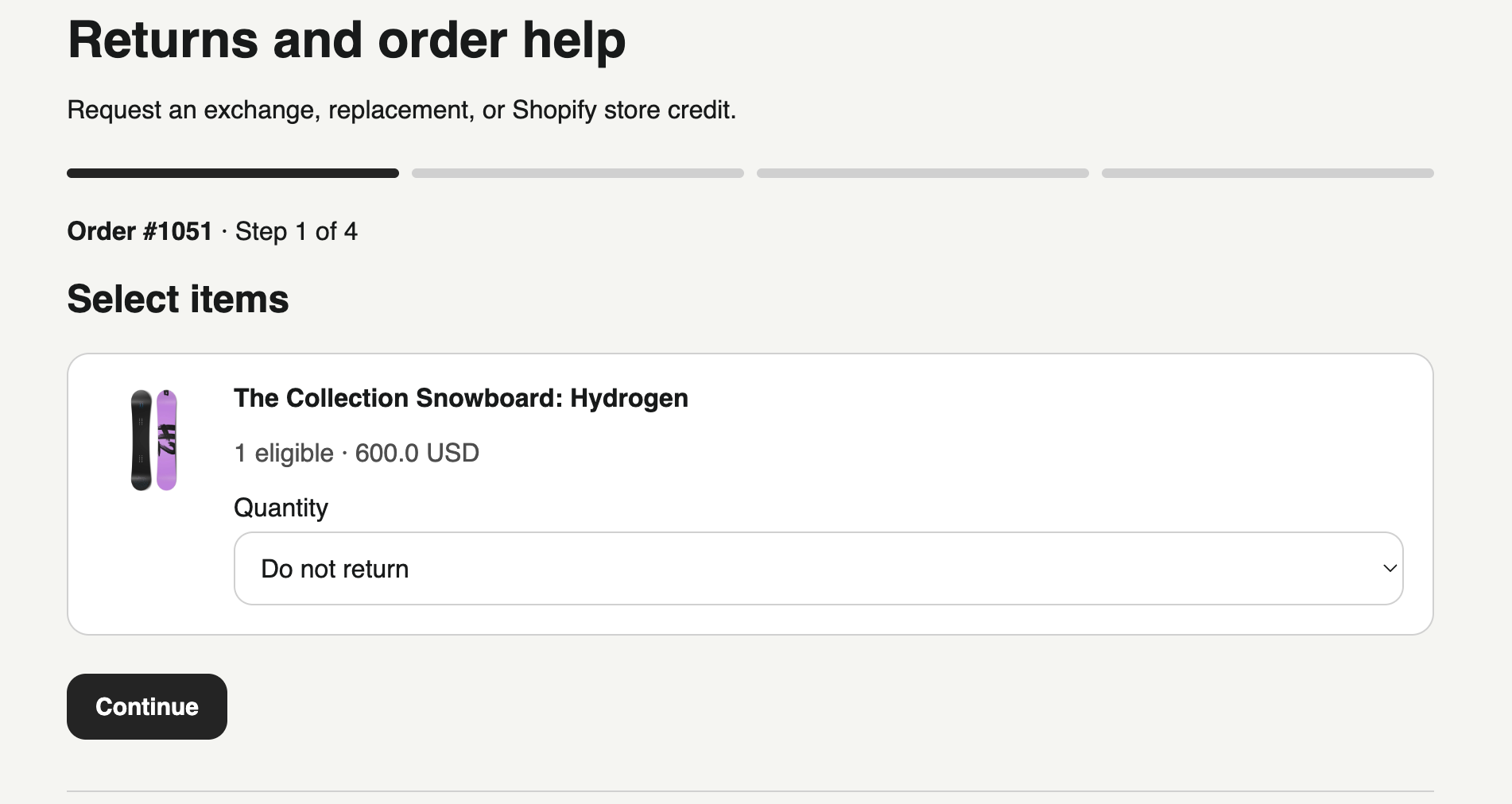
Choose item quantities
Select the exact number of units being returned. One line with quantity 2 represents two units, and both must be accounted for in any exchange selection.
Add the reason and evidence
Choose the closest reason, write useful details, and add photos when relevant. Evidence is private and available only to authorized staff.
Choose the requested outcome
The customer sees only choices allowed by your rules and the selected reasons. For exchanges, assign a replacement to every returned unit.
Submit once
The confirmation page shows the request number and tells the customer to watch for the merchant decision. The request appears immediately in the merchant queue.
Continue after approval
Reopen the same order in the Opus portal. If a return is required, the customer sees the saved return instructions, return address, and any prepaid label. For customer-arranged postage, they enter carrier and tracking after handing the parcel to the carrier. If no return is required, the request skips directly to the merchant's final resolution step.
Still stuck?
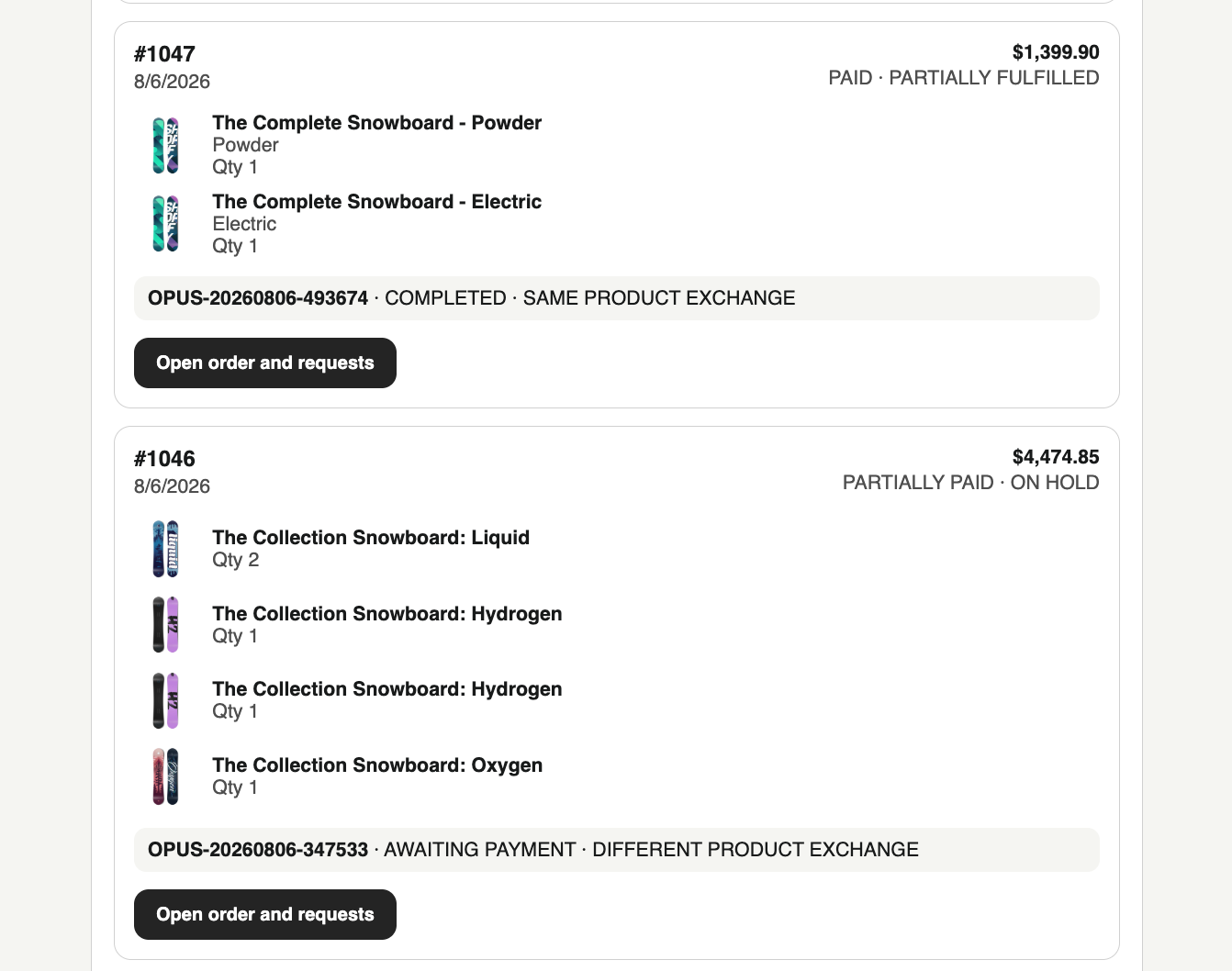
Send the details support needs
Include your shop domain, Opus request number, Shopify order number, approximate time, and the exact visible error. Never send passwords, access tokens, or card data.
Contact support